
Tere!
When visiting Malmö, I took a train, and since I booked tickets by using a platform called Omio, I will explain how to book tickets there. Omio is a transport booking platform where you can book tickets for coaches, trains as well as flights available in Europe, Canada, and the U.S. You may use either the web app or the mobile app. (I always have the iOS app on my phone.)
Table of Contents
1. Search
2. Select a type of transport
3. Choose time
4. Select another time for the return ticket when needing round tickets
5. Review the ticket/s
6. Select a class and/or additional fare
7. Enter passenger details
8. Choose a payment method
9. Confirm the ticket/s
1. Search
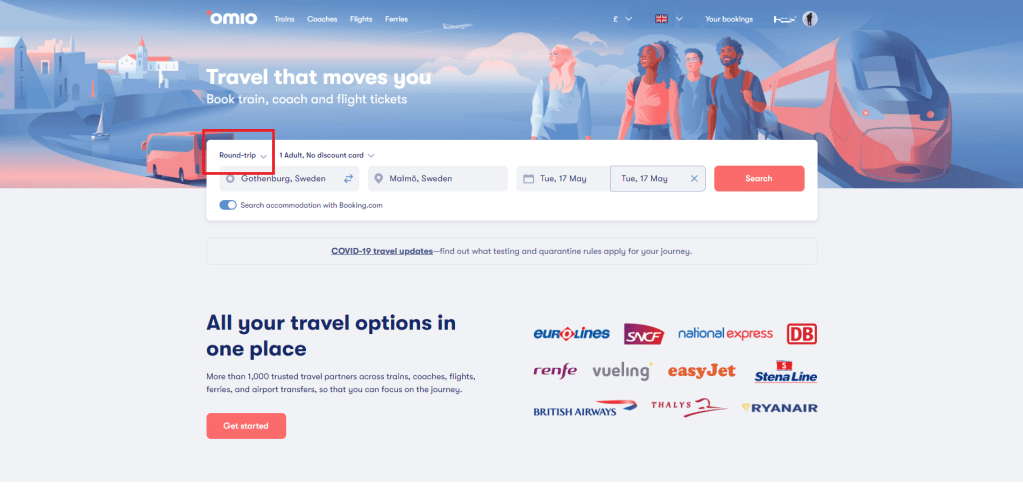
This is the first step. Search tickets by selecting a start, a destination, and date/s. By default it should show only one-way, so if you need a return ticket, you should set “Round-trip”/
2. Select a type of transport
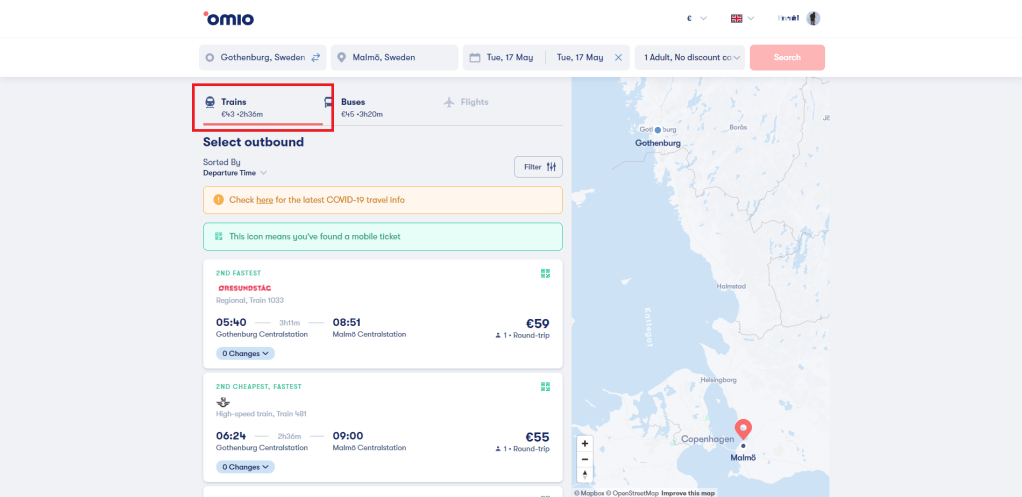
You can see a list of available tickets. From Gothenburg to Malmö, only (?) trains and buses are available. I chose trains in fact as it was cheaper.
3. Choose time
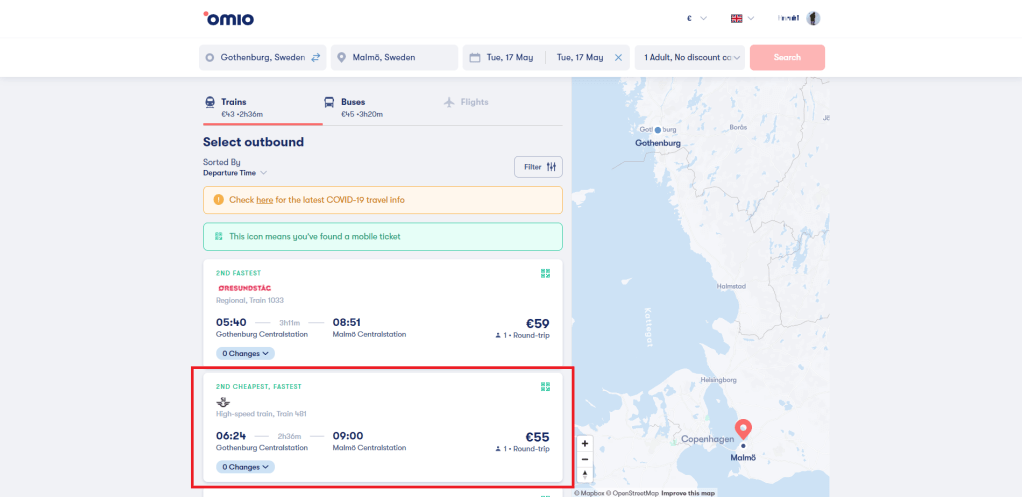
After selecting the type of transport, you need to choose time (and a kind of train if you want). I chose SJ, so I show the similar one in the screenshot as well.
4. Select another time for the return ticket when needing round tickets
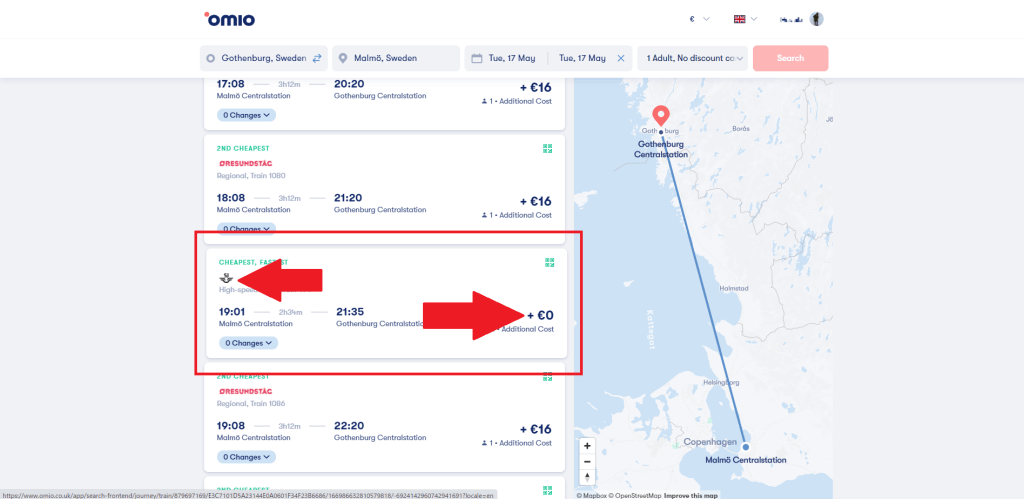
When it comes to a round-trip, you can choose the return ticket after selecting the start ticket. Some additionally cost, others don’t. Since I (still) have a habit of behaving as if I were a very poor student, I chose the one that did not cost. (Besides, even in terms of time, it was the best choice.)
5. Review the ticket/s
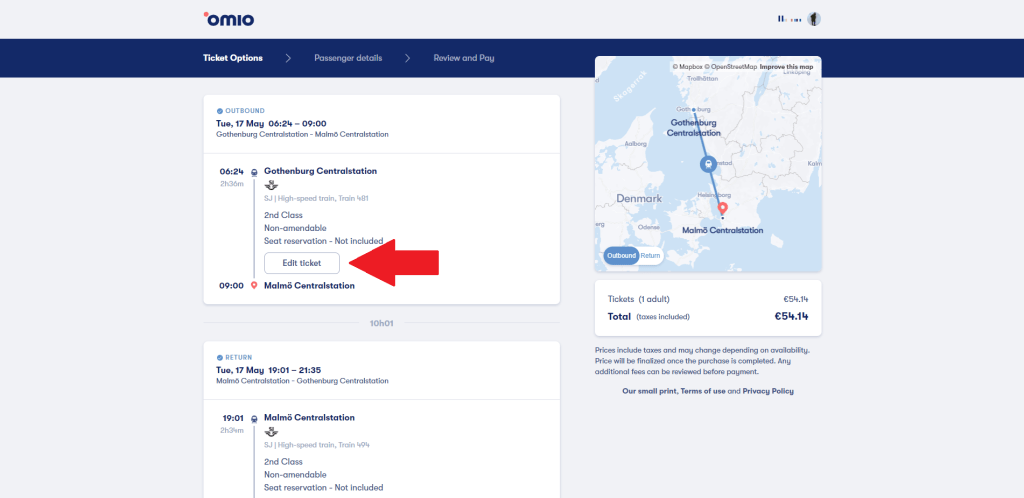
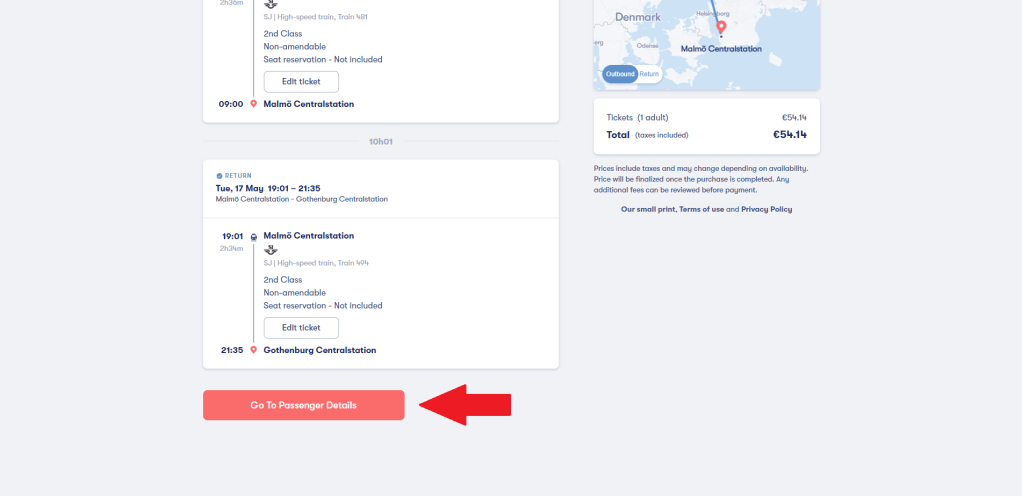
After selecting time, you can go next, and review your ticket/s.
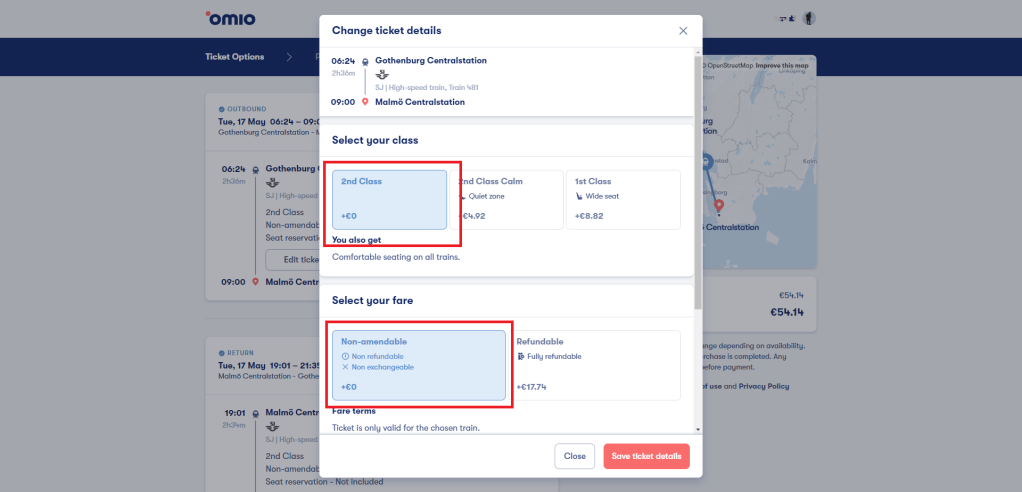
6. Select a class and/or additional fare
You may change information about a class of the train or fare by tapping “Edit ticket”. (I obviously didn’t do it.)
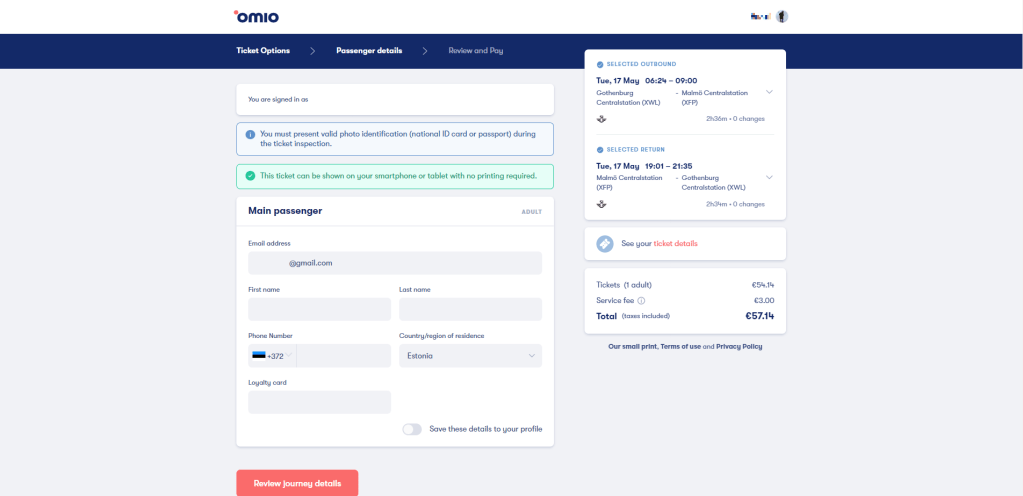
7. Enter passenger details
Enter the passenger details, making sure the travel time.
8. Choose a payment method
Finally the payment. If everything is alright, tap “Pay”.
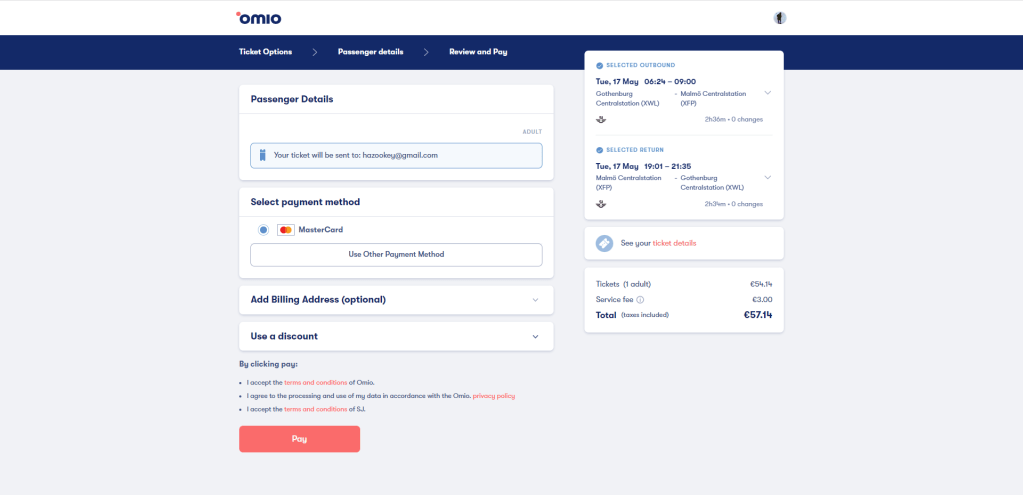
9. Confirm the ticket/s
Ticket/s will be sent to your email address shortly, but also you can check from the app. (I prefer this way as you don’t need to print out so it is ecological and you will have less stuff when travelling.)
The screenshot has tickets in the different tab (“Archived”) because those were used, but unused tickets are shown in “Upcoming”.
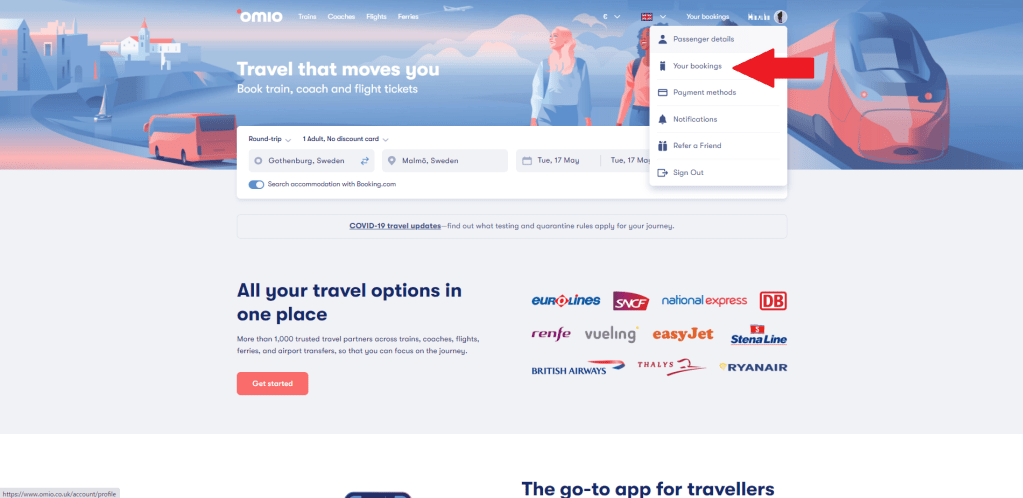
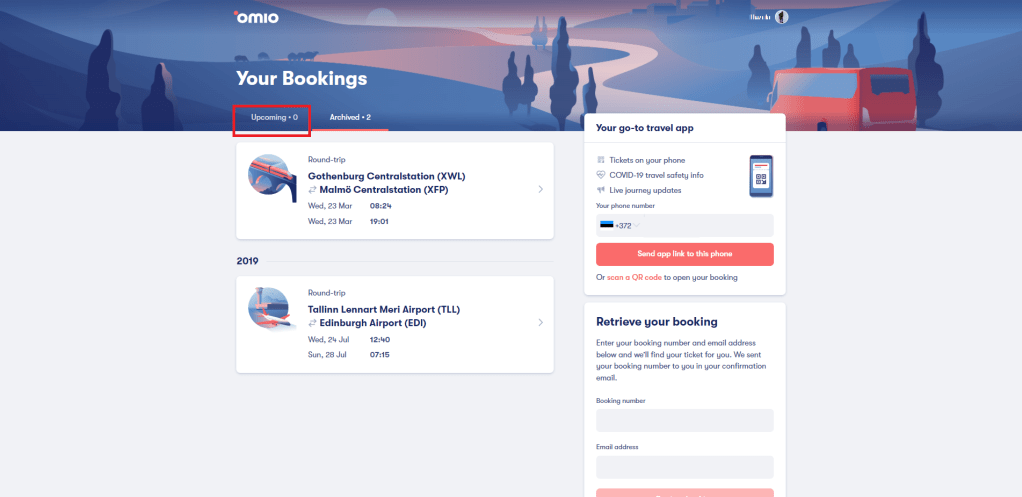
If you tap the travel plan, you can see the details, and check out the train number and so on.
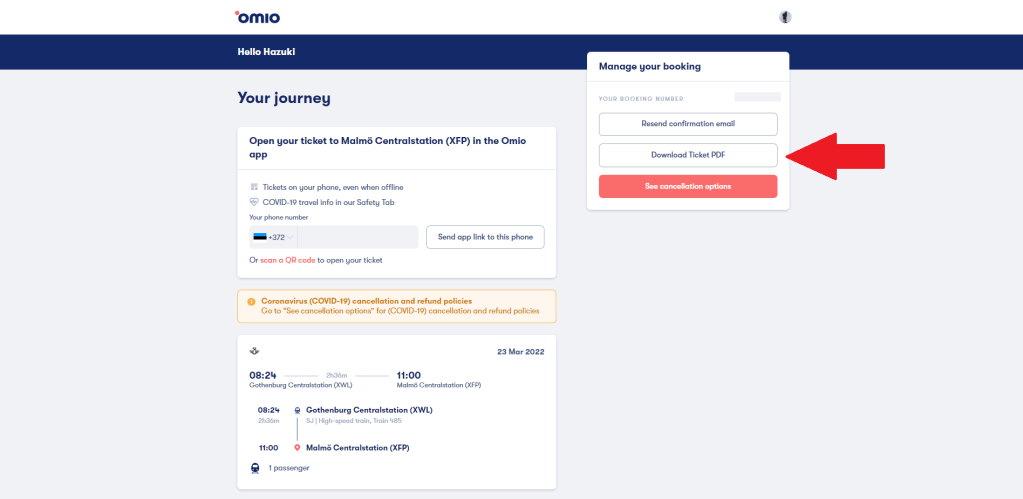
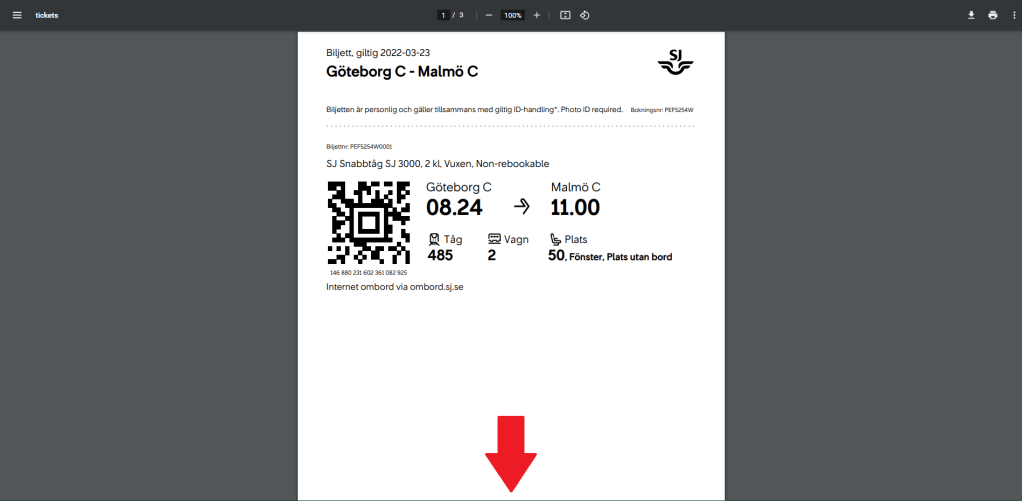
You can also open a ticket in a PDF file by tapping “Download Ticket PDF” (which button may be called differently in the mobile app). (Be careful, two tickets are in one PDF file if you have tickets for a round trip.)
I guess such information can be easily found in Omio’s website, but I summarised anyway. I believe there is nothing difficult.
Aitäh! 🙂
 zooks.ee