Tere!
Do you remember that I talked about the change of the bank in Estonia? This article is the third chapter (?) of it. (There will be four chapters in total.) This time I will develop the text regarding how to set the language on SEB’s account page, activation of SEB’s debit card as well as SEB’s mobile app.
★How to set the language on SEB’s account page
To begin with, the UI of SEB’s account page is not that user-friendly. In terms of the UI side, Swedbank has the better platform in my opinion. This is because on Swedbank’s website, you can change the language on both the public web page and your account page, and because you can change the language to English immediately from a language gateway on the top of the page.
But SEB is different!
I was so flustered.
Because I thought I might not have had English after changing the bank.
So I asked on the help chat and the support explained, but I thought:
Wait, even if you explained in English, I still cannot change it as the website is in Estonian.
Then,
I asked how it was in Estonian, and they told me – that there is indeed English on SEB’s account page. The texts below are how to change the language on SEB’s account page.
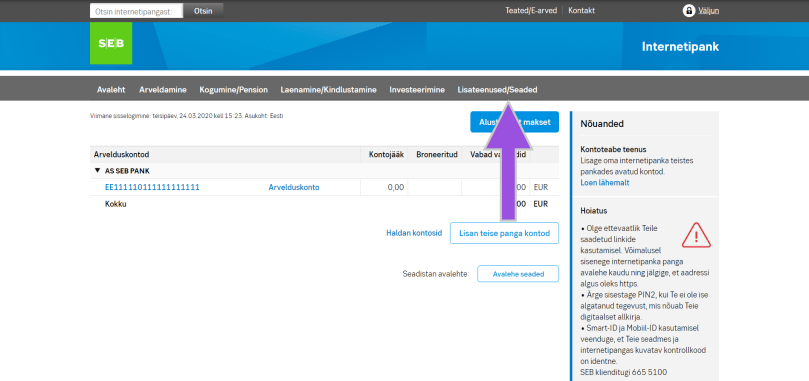
First of all, you will see the screen like the image below after logging in SEB’s account page, and click “Lisateenused/Seaded” (indicated by the arrow).
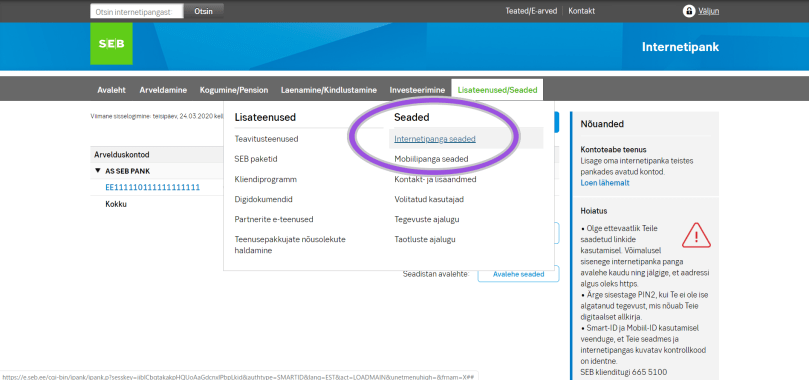
Next, there are some options shown, so click “Internetipanga seaded” (indicated by the circle).
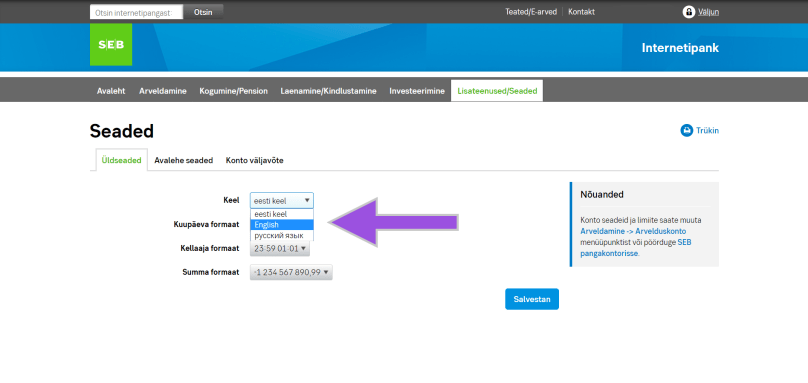
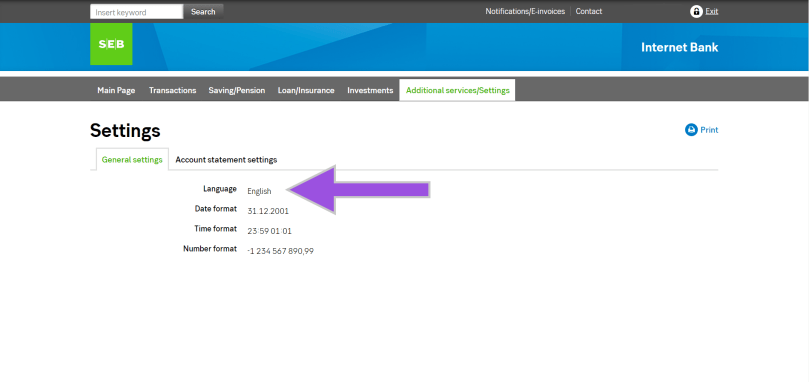
Moreover, you will see the drop-down list beside “Keel”, so select your language preference and save it. Once you saved the change, you will see the entire account page in English (if you chose English), and the language option also says “English”.
That’s it.
Congratulations! Now you completed the language setting on SEB’s account page.
★Activate the SEB card
Furthermore, let’s activate the card that you have got from SEB. Apparently it’s easier to do it after the language setting.
Firstly select “Cards” from the “Transaction” (indicated by the circle) on the account page.
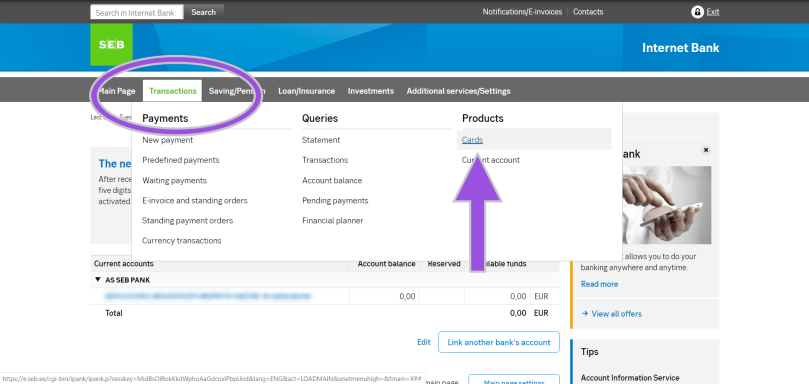
Then you will see the type of cards that you have, so click “Activate the card” and follow the instruction on the screen.

THAT IS ALL!
However, you should keep in mind that the PIN code is initially something that you can see on the screen. You cannot change the PIN code on the online banking, but no worries, you can change it at the ATM so just find the nearest SEB’s ATM.
★SEB’s mobile app
In addition to the procedures above, you might want to manage your assets from the mobile device. Of course SEB has its mobile app, but on iOS you need to set the app store Estonia first. Otherwise you cannot download the app. (Perhaps on Google Play as well but you cannot change the store again on Google Play until next year, so be careful.)
I changed the app store from Japan to Estonia, and actually nothing big has happened basically. (In more detail, as of the beginning of May 2020, I couldn’t download the apps of xID which is a Japanese version of Smart-ID and Brain Focus which is a pomodoro timer in the app store Estonia.)
Anyways, I have set something necessary and fundamental on SEB’s account page. You might be wondering why the post date of this article is the end of March is simply because I did the first two things in this article (the language setting and the card activation) on that date. As for on SEB’s app and the app store, I have another story later on.
Aitäh! 🙂
 zooks.ee